


SAFTA : South Africa Flight Training Academy
12 years ago

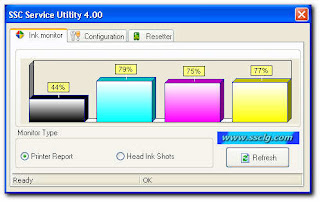
Supported printer models
|
| Status |
| Epson Stylus Сolor 400 | supported |
| Epson Stylus Сolor 440 | supported |
| Epson Stylus Color 480 LPT | supported |
| Epson Stylus Color 480SXU / 580 | supported |
| Epson Stylus Сolor 600 | supported |
| Epson Stylus Сolor 640 | supported |
| Epson Stylus Сolor 660 | supported |
| Epson Stylus Сolor 670 | supported |
| Epson Stylus Color 680 / 777 | supported |
| Epson Stylus Сolor 740 | supported |
| Epson Stylus Сolor 760 | supported |
| Epson Stylus Сolor 800 / 850 | supported |
| Epson Stylus Сolor 860 | supported |
| Epson Stylus Color 880 | supported |
| Epson Stylus Color 900 / EM-900C | supported |
| Epson Stylus Color 980 | supported |
| Epson Stylus Сolor 1160 | supported |
| Epson Stylus Color 1520 | supported |
| Epson Stylus Color 3000 | supported |
| Epson Stylus C20 / C40 / CL-750 | supported |
| Epson Stylus C41 / C42 / C43 / C44 / C45 / C46 / C47 / C48 ** | supported |
| Epson Stylus C50 | supported |
| Epson Stylus C60 | supported |
| Epson Stylus C61 / C62 ** | supported |
| Epson Stylus C63 / C64 ** | supported |
| Epson Stylus C65 / C66 and PE ** | supported |
| Epson Stylus C67 / C68 / D68 and PE ** | supported |
| Epson Stylus C70 ** | supported |
| Epson Stylus C80 ** | supported |
| Epson Stylus C82 ** | supported |
| Epson Stylus C83 / C84 ** | supported |
| Epson Stylus C85 / C86 and PE ** | supported |
| Epson Stylus C87 / C88 / D88 and PE ** | supported |
| Epson Stylus Photo RX420 / RX425 / RX430 ** | supported |
| Epson Stylus Photo RX500 / RX510** | supported |
| Epson Stylus Photo RX520 ** | supported |
| Epson Stylus Photo RX600 / RX610 ** | supported |
| Epson Stylus Photo RX620 ** | supported |
| Epson Stylus Photo RX700 ** | supported |
| Epson Stylus CX3100 / CX3200 ** | supported |
| Epson Stylus CX3500 / CX3600 / CX3650 ** | supported |
| Epson Stylus CX3700 ** | supported |
| Epson Stylus CX3800 / CX3810 / DX3800 ** | supported |
| Epson Stylus CX4500 ** | supported |
| Epson Stylus CX4600 ** | supported |
| Epson Stylus CX4100 / CX4200 ** | supported |
| Epson Stylus CX4700 / CX4800 ** | supported |
| Epson Stylus DX4200 / DX4800 ** | supported |
| Epson Stylus CX5100 / CX5200 ** | supported |
| Epson Stylus CX5300 / CX5400 ** | supported |
| Epson Stylus CX6400 / CX6600 ** | supported |
| Epson Stylus CX6300 / CX6500 ** | supported |
| Epson Stylus CX7800 ** | supported |
| Epson PictureMate | supported |
| Epson Stylus Photo | supported |
| Epson Stylus Photo EX | supported |
| Epson Stylus Photo 700 / IP-100 | supported |
| Epson Stylus Photo 750 / PM-770C | supported |
| Epson Stylus Photo 780 / 790 / PM-780C | supported |
| Epson Stylus Photo 810 / 820 | supported |
| Epson Stylus Photo 820 ** | supported |
| Epson Stylus Photo 825 / 915 | supported |
| Epson Stylus Photo 830 / 830U ** | supported |
| Epson Stylus Photo 870 / PM-875DC | supported |
| Epson Stylus Photo R200 / R210 ** | supported |
| Epson Stylus Photo R220 / R230 ** | supported |
| Epson Stylus Photo R300 / R310 ** | supported |
| Epson Stylus Photo R320 ** | supported |
| Epson Stylus Photo R800 / PX-G900 ** | supported |
| Epson Stylus Photo R1800 ** | supported |
| Epson Stylus Photo R2400 ** | supported |
| Epson Stylus Photo 890 | supported |
| Epson Stylus Photo PM-890C | supported |
| Epson Stylus Photo PM-A700 ** | supported |
| Epson Stylus Photo PM-G720 ** | supported |
| Epson Stylus Photo PM-970C ** | supported |
| Epson Stylus Photo 895/ 785EPX | supported |
| Epson Stylus Photo 900 ** | supported |
| Epson Stylus Photo 925 / 935 ** | supported |
| Epson Stylus Photo 950 / 960 / PM-950C ** | supported |
| Epson Stylus Photo 1200 / PM-3000C | supported |
| Epson Stylus Photo 1270 / PM-3300C | supported |
| Epson Stylus Photo 1280 / PM-3500C | supported |
| Epson Stylus Photo 1290 | supported |
| Epson Stylus Photo 2000P | supported |
| Epson Stylus Photo 2100 ** | supported |
| Epson Stylus Photo 2200 / PM-4000EPX ** | supported |
| Epson Stylus Pro 5000 / PM-5000C | supported |
|
| Status |
| Epson Stylus Сolor 400 | supported |
| Epson Stylus Сolor 440 | supported |
| Epson Stylus Color 480 LPT | supported |
| Epson Stylus Color 480SXU / 580 | supported |
| Epson Stylus Сolor 600 | supported |
| Epson Stylus Сolor 640 | supported |
| Epson Stylus Сolor 660 | supported |
| Epson Stylus Сolor 670 | supported |
| Epson Stylus Color 680 / 777 | supported |
| Epson Stylus Сolor 740 | supported |
| Epson Stylus Сolor 760 | supported |
| Epson Stylus Сolor 800 / 850 | supported |
| Epson Stylus Сolor 860 | supported |
| Epson Stylus Color 880 | supported |
| Epson Stylus Color 900 / EM-900C | supported |
| Epson Stylus Color 980 | supported |
| Epson Stylus Сolor 1160 | supported |
| Epson Stylus Color 1520 | supported |
| Epson Stylus Color 3000 | supported |
| Epson Stylus C20 / C40 / CL-750 | supported |
| Epson Stylus C41 / C42 / C43 / C44 / C45 / C46 / C47 / C48 ** | supported |
| Epson Stylus C50 | supported |
| Epson Stylus C60 | supported |
| Epson Stylus C61 / C62 ** | supported |
| Epson Stylus C63 / C64 ** | supported |
| Epson Stylus C65 / C66 and PE ** | supported |
| Epson Stylus C67 / C68 / D68 and PE ** | supported |
| Epson Stylus C70 ** | supported |
| Epson Stylus C80 ** | supported |
| Epson Stylus C82 ** | supported |
| Epson Stylus C83 / C84 ** | supported |
| Epson Stylus C85 / C86 and PE ** | supported |
| Epson Stylus C87 / C88 / D88 and PE ** | supported |
| Epson Stylus Photo RX420 / RX425 / RX430 ** | supported |
| Epson Stylus Photo RX500 / RX510** | supported |
| Epson Stylus Photo RX520 ** | supported |
| Epson Stylus Photo RX600 / RX610 ** | supported |
| Epson Stylus Photo RX620 ** | supported |
| Epson Stylus Photo RX700 ** | supported |
| Epson Stylus CX3100 / CX3200 ** | supported |
| Epson Stylus CX3500 / CX3600 / CX3650 ** | supported |
| Epson Stylus CX3700 ** | supported |
| Epson Stylus CX3800 / CX3810 / DX3800 ** | supported |
| Epson Stylus CX4500 ** | supported |
| Epson Stylus CX4600 ** | supported |
| Epson Stylus CX4100 / CX4200 ** | supported |
| Epson Stylus CX4700 / CX4800 ** | supported |
| Epson Stylus DX4200 / DX4800 ** | supported |
| Epson Stylus CX5100 / CX5200 ** | supported |
| Epson Stylus CX5300 / CX5400 ** | supported |
| Epson Stylus CX6400 / CX6600 ** | supported |
| Epson Stylus CX6300 / CX6500 ** | supported |
| Epson Stylus CX7800 ** | supported |
| Epson PictureMate | supported |
| Epson Stylus Photo | supported |
| Epson Stylus Photo EX | supported |
| Epson Stylus Photo 700 / IP-100 | supported |
| Epson Stylus Photo 750 / PM-770C | supported |
| Epson Stylus Photo 780 / 790 / PM-780C | supported |
| Epson Stylus Photo 810 / 820 | supported |
| Epson Stylus Photo 820 ** | supported |
| Epson Stylus Photo 825 / 915 | supported |
| Epson Stylus Photo 830 / 830U ** | supported |
| Epson Stylus Photo 870 / PM-875DC | supported |
| Epson Stylus Photo R200 / R210 ** | supported |
| Epson Stylus Photo R220 / R230 ** | supported |
| Epson Stylus Photo R300 / R310 ** | supported |
| Epson Stylus Photo R320 ** | supported |
| Epson Stylus Photo R800 / PX-G900 ** | supported |
| Epson Stylus Photo R1800 ** | supported |
| Epson Stylus Photo R2400 ** | supported |
| Epson Stylus Photo 890 | supported |
| Epson Stylus Photo PM-890C | supported |
| Epson Stylus Photo PM-A700 ** | supported |
| Epson Stylus Photo PM-G720 ** | supported |
| Epson Stylus Photo PM-970C ** | supported |
| Epson Stylus Photo 895/ 785EPX | supported |
| Epson Stylus Photo 900 ** | supported |
| Epson Stylus Photo 925 / 935 ** | supported |
| Epson Stylus Photo 950 / 960 / PM-950C ** | supported |
| Epson Stylus Photo 1200 / PM-3000C | supported |
| Epson Stylus Photo 1270 / PM-3300C | supported |
| Epson Stylus Photo 1280 / PM-3500C | supported |
| Epson Stylus Photo 1290 | supported |
| Epson Stylus Photo 2000P | supported |
| Epson Stylus Photo 2100 ** | supported |
| Epson Stylus Photo 2200 / PM-4000EPX ** | supported |
| Epson Stylus Pro 5000 / PM-5000C | supported |
E2-2 = No paper (ASF)
E3-3 = Paper jam
E4 = No ink
E5-5 = The ink cartridges are not installed or a non-supported ink cartridge is installed, or the ink cartridges are not installed properly
E8 = Waste ink absorber full, or platen waste ink absorber full
E9 = The connected digital camera / video camera does not support Camera Direct Printing
E14 = The Ink cartridges whose destination are wrong
E15 = Ink cartridge is not installed E16 - Ink remaining is unknown
E16 -E19 = Failed to scan head alignment sheet
E22 = Carriage error
E23 = Paper feed error
E24 = Purge unit error
E25 = ASF(cam) sensor error
E26 = Internal temperature rise error
E27 = Waste ink absorber full or platen waste ink absorber full
E28 = Ink cartridge temperature rise error -
E29 = EEPROM error
E33 = Paper feed position error
E35 15 = USB Host error
E37 17 = Abnormal motor driver error
E40 20 = Other hardware error
E42 22 = Scanner error
3x orange 1x Green = mekanik error
4x orange 1x green = absorber full /reset with software tools
5x orange 1x green = cartirdge black/colour error
7x orange 1x green = cartirdge black/colour error
8x orange 1x green = absorber full / reset with software tools
12x - 15x orange 1x green = cartridge detection error
- Copyright © Electronics Service -Metrominimalist- Powered by Blogger - Designed by Johanes Djogan -
