


SAFTA : South Africa Flight Training Academy
12 years ago

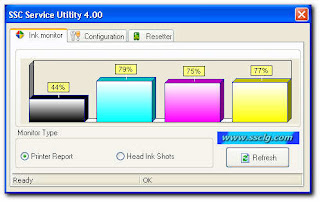
Supported printer models
|
| Status |
| Epson Stylus Сolor 400 | supported |
| Epson Stylus Сolor 440 | supported |
| Epson Stylus Color 480 LPT | supported |
| Epson Stylus Color 480SXU / 580 | supported |
| Epson Stylus Сolor 600 | supported |
| Epson Stylus Сolor 640 | supported |
| Epson Stylus Сolor 660 | supported |
| Epson Stylus Сolor 670 | supported |
| Epson Stylus Color 680 / 777 | supported |
| Epson Stylus Сolor 740 | supported |
| Epson Stylus Сolor 760 | supported |
| Epson Stylus Сolor 800 / 850 | supported |
| Epson Stylus Сolor 860 | supported |
| Epson Stylus Color 880 | supported |
| Epson Stylus Color 900 / EM-900C | supported |
| Epson Stylus Color 980 | supported |
| Epson Stylus Сolor 1160 | supported |
| Epson Stylus Color 1520 | supported |
| Epson Stylus Color 3000 | supported |
| Epson Stylus C20 / C40 / CL-750 | supported |
| Epson Stylus C41 / C42 / C43 / C44 / C45 / C46 / C47 / C48 ** | supported |
| Epson Stylus C50 | supported |
| Epson Stylus C60 | supported |
| Epson Stylus C61 / C62 ** | supported |
| Epson Stylus C63 / C64 ** | supported |
| Epson Stylus C65 / C66 and PE ** | supported |
| Epson Stylus C67 / C68 / D68 and PE ** | supported |
| Epson Stylus C70 ** | supported |
| Epson Stylus C80 ** | supported |
| Epson Stylus C82 ** | supported |
| Epson Stylus C83 / C84 ** | supported |
| Epson Stylus C85 / C86 and PE ** | supported |
| Epson Stylus C87 / C88 / D88 and PE ** | supported |
| Epson Stylus Photo RX420 / RX425 / RX430 ** | supported |
| Epson Stylus Photo RX500 / RX510** | supported |
| Epson Stylus Photo RX520 ** | supported |
| Epson Stylus Photo RX600 / RX610 ** | supported |
| Epson Stylus Photo RX620 ** | supported |
| Epson Stylus Photo RX700 ** | supported |
| Epson Stylus CX3100 / CX3200 ** | supported |
| Epson Stylus CX3500 / CX3600 / CX3650 ** | supported |
| Epson Stylus CX3700 ** | supported |
| Epson Stylus CX3800 / CX3810 / DX3800 ** | supported |
| Epson Stylus CX4500 ** | supported |
| Epson Stylus CX4600 ** | supported |
| Epson Stylus CX4100 / CX4200 ** | supported |
| Epson Stylus CX4700 / CX4800 ** | supported |
| Epson Stylus DX4200 / DX4800 ** | supported |
| Epson Stylus CX5100 / CX5200 ** | supported |
| Epson Stylus CX5300 / CX5400 ** | supported |
| Epson Stylus CX6400 / CX6600 ** | supported |
| Epson Stylus CX6300 / CX6500 ** | supported |
| Epson Stylus CX7800 ** | supported |
| Epson PictureMate | supported |
| Epson Stylus Photo | supported |
| Epson Stylus Photo EX | supported |
| Epson Stylus Photo 700 / IP-100 | supported |
| Epson Stylus Photo 750 / PM-770C | supported |
| Epson Stylus Photo 780 / 790 / PM-780C | supported |
| Epson Stylus Photo 810 / 820 | supported |
| Epson Stylus Photo 820 ** | supported |
| Epson Stylus Photo 825 / 915 | supported |
| Epson Stylus Photo 830 / 830U ** | supported |
| Epson Stylus Photo 870 / PM-875DC | supported |
| Epson Stylus Photo R200 / R210 ** | supported |
| Epson Stylus Photo R220 / R230 ** | supported |
| Epson Stylus Photo R300 / R310 ** | supported |
| Epson Stylus Photo R320 ** | supported |
| Epson Stylus Photo R800 / PX-G900 ** | supported |
| Epson Stylus Photo R1800 ** | supported |
| Epson Stylus Photo R2400 ** | supported |
| Epson Stylus Photo 890 | supported |
| Epson Stylus Photo PM-890C | supported |
| Epson Stylus Photo PM-A700 ** | supported |
| Epson Stylus Photo PM-G720 ** | supported |
| Epson Stylus Photo PM-970C ** | supported |
| Epson Stylus Photo 895/ 785EPX | supported |
| Epson Stylus Photo 900 ** | supported |
| Epson Stylus Photo 925 / 935 ** | supported |
| Epson Stylus Photo 950 / 960 / PM-950C ** | supported |
| Epson Stylus Photo 1200 / PM-3000C | supported |
| Epson Stylus Photo 1270 / PM-3300C | supported |
| Epson Stylus Photo 1280 / PM-3500C | supported |
| Epson Stylus Photo 1290 | supported |
| Epson Stylus Photo 2000P | supported |
| Epson Stylus Photo 2100 ** | supported |
| Epson Stylus Photo 2200 / PM-4000EPX ** | supported |
| Epson Stylus Pro 5000 / PM-5000C | supported |
|
| Status |
| Epson Stylus Сolor 400 | supported |
| Epson Stylus Сolor 440 | supported |
| Epson Stylus Color 480 LPT | supported |
| Epson Stylus Color 480SXU / 580 | supported |
| Epson Stylus Сolor 600 | supported |
| Epson Stylus Сolor 640 | supported |
| Epson Stylus Сolor 660 | supported |
| Epson Stylus Сolor 670 | supported |
| Epson Stylus Color 680 / 777 | supported |
| Epson Stylus Сolor 740 | supported |
| Epson Stylus Сolor 760 | supported |
| Epson Stylus Сolor 800 / 850 | supported |
| Epson Stylus Сolor 860 | supported |
| Epson Stylus Color 880 | supported |
| Epson Stylus Color 900 / EM-900C | supported |
| Epson Stylus Color 980 | supported |
| Epson Stylus Сolor 1160 | supported |
| Epson Stylus Color 1520 | supported |
| Epson Stylus Color 3000 | supported |
| Epson Stylus C20 / C40 / CL-750 | supported |
| Epson Stylus C41 / C42 / C43 / C44 / C45 / C46 / C47 / C48 ** | supported |
| Epson Stylus C50 | supported |
| Epson Stylus C60 | supported |
| Epson Stylus C61 / C62 ** | supported |
| Epson Stylus C63 / C64 ** | supported |
| Epson Stylus C65 / C66 and PE ** | supported |
| Epson Stylus C67 / C68 / D68 and PE ** | supported |
| Epson Stylus C70 ** | supported |
| Epson Stylus C80 ** | supported |
| Epson Stylus C82 ** | supported |
| Epson Stylus C83 / C84 ** | supported |
| Epson Stylus C85 / C86 and PE ** | supported |
| Epson Stylus C87 / C88 / D88 and PE ** | supported |
| Epson Stylus Photo RX420 / RX425 / RX430 ** | supported |
| Epson Stylus Photo RX500 / RX510** | supported |
| Epson Stylus Photo RX520 ** | supported |
| Epson Stylus Photo RX600 / RX610 ** | supported |
| Epson Stylus Photo RX620 ** | supported |
| Epson Stylus Photo RX700 ** | supported |
| Epson Stylus CX3100 / CX3200 ** | supported |
| Epson Stylus CX3500 / CX3600 / CX3650 ** | supported |
| Epson Stylus CX3700 ** | supported |
| Epson Stylus CX3800 / CX3810 / DX3800 ** | supported |
| Epson Stylus CX4500 ** | supported |
| Epson Stylus CX4600 ** | supported |
| Epson Stylus CX4100 / CX4200 ** | supported |
| Epson Stylus CX4700 / CX4800 ** | supported |
| Epson Stylus DX4200 / DX4800 ** | supported |
| Epson Stylus CX5100 / CX5200 ** | supported |
| Epson Stylus CX5300 / CX5400 ** | supported |
| Epson Stylus CX6400 / CX6600 ** | supported |
| Epson Stylus CX6300 / CX6500 ** | supported |
| Epson Stylus CX7800 ** | supported |
| Epson PictureMate | supported |
| Epson Stylus Photo | supported |
| Epson Stylus Photo EX | supported |
| Epson Stylus Photo 700 / IP-100 | supported |
| Epson Stylus Photo 750 / PM-770C | supported |
| Epson Stylus Photo 780 / 790 / PM-780C | supported |
| Epson Stylus Photo 810 / 820 | supported |
| Epson Stylus Photo 820 ** | supported |
| Epson Stylus Photo 825 / 915 | supported |
| Epson Stylus Photo 830 / 830U ** | supported |
| Epson Stylus Photo 870 / PM-875DC | supported |
| Epson Stylus Photo R200 / R210 ** | supported |
| Epson Stylus Photo R220 / R230 ** | supported |
| Epson Stylus Photo R300 / R310 ** | supported |
| Epson Stylus Photo R320 ** | supported |
| Epson Stylus Photo R800 / PX-G900 ** | supported |
| Epson Stylus Photo R1800 ** | supported |
| Epson Stylus Photo R2400 ** | supported |
| Epson Stylus Photo 890 | supported |
| Epson Stylus Photo PM-890C | supported |
| Epson Stylus Photo PM-A700 ** | supported |
| Epson Stylus Photo PM-G720 ** | supported |
| Epson Stylus Photo PM-970C ** | supported |
| Epson Stylus Photo 895/ 785EPX | supported |
| Epson Stylus Photo 900 ** | supported |
| Epson Stylus Photo 925 / 935 ** | supported |
| Epson Stylus Photo 950 / 960 / PM-950C ** | supported |
| Epson Stylus Photo 1200 / PM-3000C | supported |
| Epson Stylus Photo 1270 / PM-3300C | supported |
| Epson Stylus Photo 1280 / PM-3500C | supported |
| Epson Stylus Photo 1290 | supported |
| Epson Stylus Photo 2000P | supported |
| Epson Stylus Photo 2100 ** | supported |
| Epson Stylus Photo 2200 / PM-4000EPX ** | supported |
| Epson Stylus Pro 5000 / PM-5000C | supported |
E2-2 = No paper (ASF)
E3-3 = Paper jam
E4 = No ink
E5-5 = The ink cartridges are not installed or a non-supported ink cartridge is installed, or the ink cartridges are not installed properly
E8 = Waste ink absorber full, or platen waste ink absorber full
E9 = The connected digital camera / video camera does not support Camera Direct Printing
E14 = The Ink cartridges whose destination are wrong
E15 = Ink cartridge is not installed E16 - Ink remaining is unknown
E16 -E19 = Failed to scan head alignment sheet
E22 = Carriage error
E23 = Paper feed error
E24 = Purge unit error
E25 = ASF(cam) sensor error
E26 = Internal temperature rise error
E27 = Waste ink absorber full or platen waste ink absorber full
E28 = Ink cartridge temperature rise error -
E29 = EEPROM error
E33 = Paper feed position error
E35 15 = USB Host error
E37 17 = Abnormal motor driver error
E40 20 = Other hardware error
E42 22 = Scanner error
3x orange 1x Green = mekanik error
4x orange 1x green = absorber full /reset with software tools
5x orange 1x green = cartirdge black/colour error
7x orange 1x green = cartirdge black/colour error
8x orange 1x green = absorber full / reset with software tools
12x - 15x orange 1x green = cartridge detection error
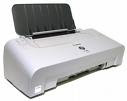
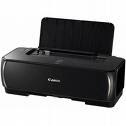
5. Reset for permanent , download and use this software
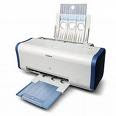
Canon i320,i350, i355, i250, i255
Step 1 : Manual Reset
1. Unplug power and USB.
2. Open door and hold power button.
3. Connect power.
4. Close door, then release power button.
Step 2: Manual Reset 2
1. Turn off the printer. And disconnect the printer cable.
2. Press and hold the POWER button, turn on the printer.
3. The indicator (L.E.D.) should be green.
4. Press and release the RESUME button , the indicator (L.E.D.) should be orange.
5. Press and release the RESUME button again, the indicator (L.E.D.) should be green.
6. Release both buttons.
step 2 : Software for Permanent
1. Reconnect the printer cable.
2.Open Free software Resetter i320 , i250
3 .Choose (SET DESTINATION 1) And it should be reset.
- Copyright © Electronics Service -Metrominimalist- Powered by Blogger - Designed by Johanes Djogan -
